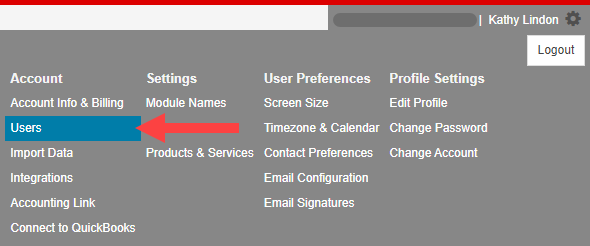
If you are an account owner or manager, click the settings icon and select Users to invite new users.
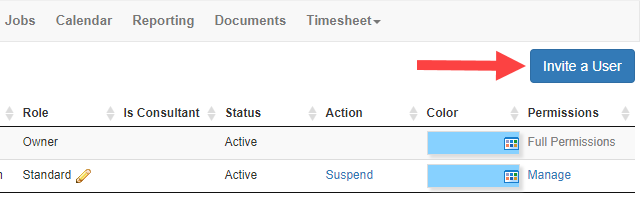
In the user management screen, click Invite a User.
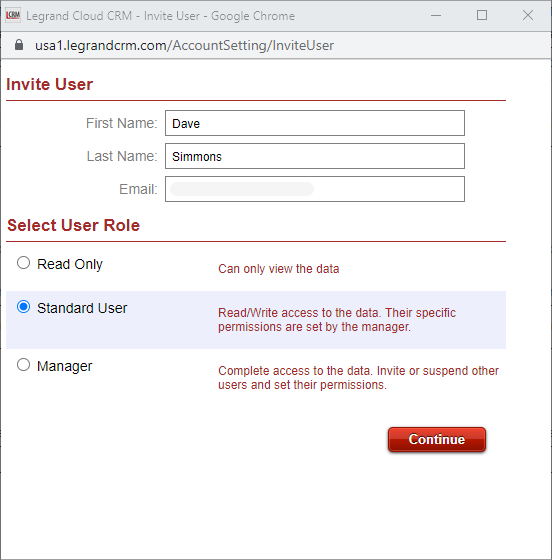
Enter the team member’s First Name, Last Name and Email. The email entered will be the same email used to log into Legrand Cloud CRM.
Select a User Role and click Continue to invite the team member.
Note: The Owner or Manager can set specific user permissions for a Standard User once the team member accepts the invite and creates an account. Click here to find out more about user roles and permissions.
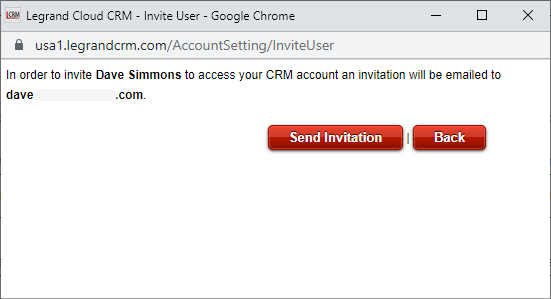
Check that the name and email address are correct and click Send Invitation.
Click Close.
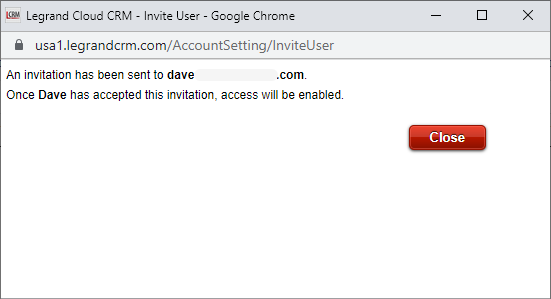
Please advise the person you are inviting to check their Junk Mail folder if they have not seen the invitation after 10 minutes.
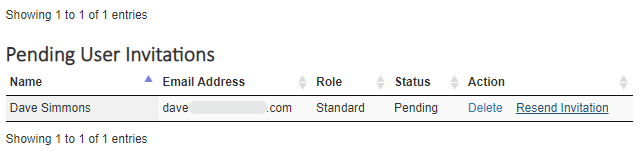
In the user management screen, you can find the pending invitations. You can also resend the email invitation or delete it.
Accepting an Invitation and Creating a New User Account
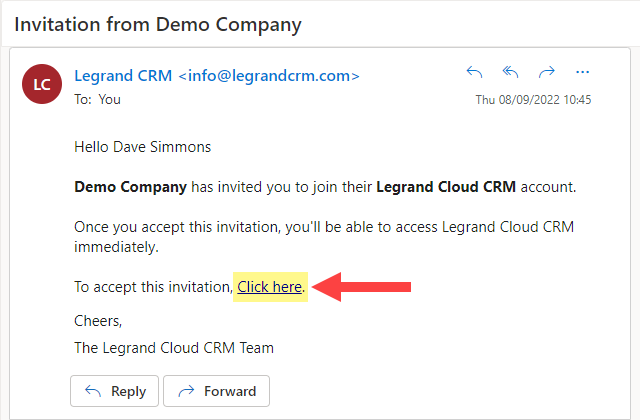
Go to your email inbox and select Click here to accept the invitation.
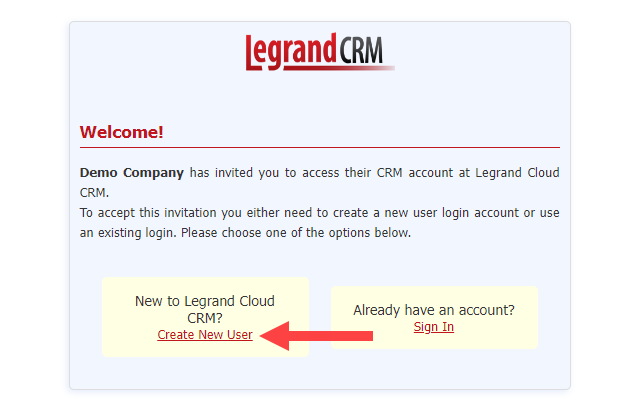
Click Create New User to create a new user account.
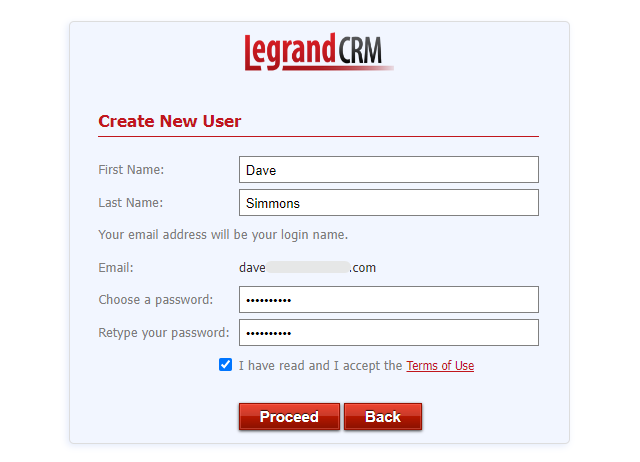
Enter your name and create a password. Accept the terms of use and then click Proceed.